Showing posts with label Temando process. Show all posts

Wednesday, June 4, 2014

Plug Into Better Shipping Part 7: Adding Value for the Social Conscious


Giving your customer options isn't just about delivery, you can also add value to your customers purchase through options such as carbon offset or micro donations. This has been an online norm for a few years now with booking platforms such as Jetstar and Virgin Australia giving customers the opportunity to carbon offset their flights as well as donating to suggested charity programs.
Jetstars checkout give the option to offset and donate.


When using the Temando Shipping Extension in Magento you have the ability to offer your customers the option to carbon offset or make a micro donations at the checkout. Providing these alternative options not only helps with your corporate responsibility positioning, it also allows the social conscious customer to contribute to positive social change. Whilst the options may not directly impact your conversions it's a welcome addition to your brand image and all offsets are measured.

In a recent public opinion poll conducted by the Lowy Institute 45% of Australian respondents now see global warming as a ‘serious and pressing problem’. Temando in co-operation with the Gaia Partnership can easily enable carbon offsets in your Magento store. The Gaia Partnership measures and offsets the carbon from the courier delivery through programs such as Tasmanian Native Forest Protection Project.


Anaconda is a great eCommerce example of a business dedicated to corporate responsibility. Anaconda have configured their Magento store to display carbon offset as optional at the checkout.

Anaconda have Carbon Offset enabled at the checkout.


How to enable carbon offset
1. In your Magento admin panel go to Temando > Configuration Settings > Temando
2. From the carbon offset section you have 3 options to select from:
        Disabled – this option will turn off the carbon offset and is unavailable to customers
        Optional – a check box is displayed to the customer and they can choose to opt in
        Mandatory – carbon offset is added to all orders
3. Once you have selected from the drop down menu click ‘save config’


Along with carbon offsetting, you can also enable micro donations to a charity. Through the Temando Shipping Extension for Magento you can offer a micro donation to the Footprints Network. The Footprints Network funds projects such as Keeping girls in school Uganda, Kids clean water project Mpofini village and other worthy projects.


How to enable Footprints
1. Once in your Magento admin panel go to Temando > Configuration Settings > Temando
2. From the Footprints section you have 3 options to select from:
        Disabled – this option will turn off the carbon offset and is unavailable to customers
        Optional – a check box is displayed to the customer and they can choose to opt in
        Mandatory – carbon offset is added to all orders
3. Once you have selected from the drop down menu click ‘save config’


If you have selected optional or mandatory it will appear in your checkout in the shipping section.


Enabling these options at the checkout is a great value add for your social conscious customer. 


Wednesday, May 28, 2014

Plug Into Better Shipping Part 6: Rules Part 2- Getting Tricky


Last week we covered creating simple & effective shipping rules in Magento. We talked about why you need shipping rules, outlined a few basic rules and how to configure them in your Temando Shipping Extension for Magento.


The advanced rules engine is only available in professional plans and upwards, if you would like to upgrade, you can contact Team Temando.


To start let’s take a look at an example where shipping can fall down if rules are not used


Scenario
A home wares website offers free shipping as their latest campaign. They promote it via EDM and to their social networks. All items are included from sofas, lamps to decorative pillows and at a glance the post campaign evaluation data indicated that the campaign was not profitable. However upon closer inspection this was due to larger, bulky items being purchased as a part of the campaign. These Items included products with dimensions of 140x45x70cm, which are more costly to ship and therefore, reduced the average margin across the campaign.


Recommendations
An advanced rules engine like the one found in the Temando's Magento Shipping Extension allows you to exclude certain SKU’s from campaigns. In this example we would recommend that a little * is included advising customers certain large and bulky items will be excluded from the promotion. When configured in Magento, the rules engine will automatically exclude nominate SKU’s or categories from the campaign and will quote a nominated or dynamic shipping cost to the customer.


Results
A successful free shipping campaign!


What advanced rules can you create?


Time specific rules 
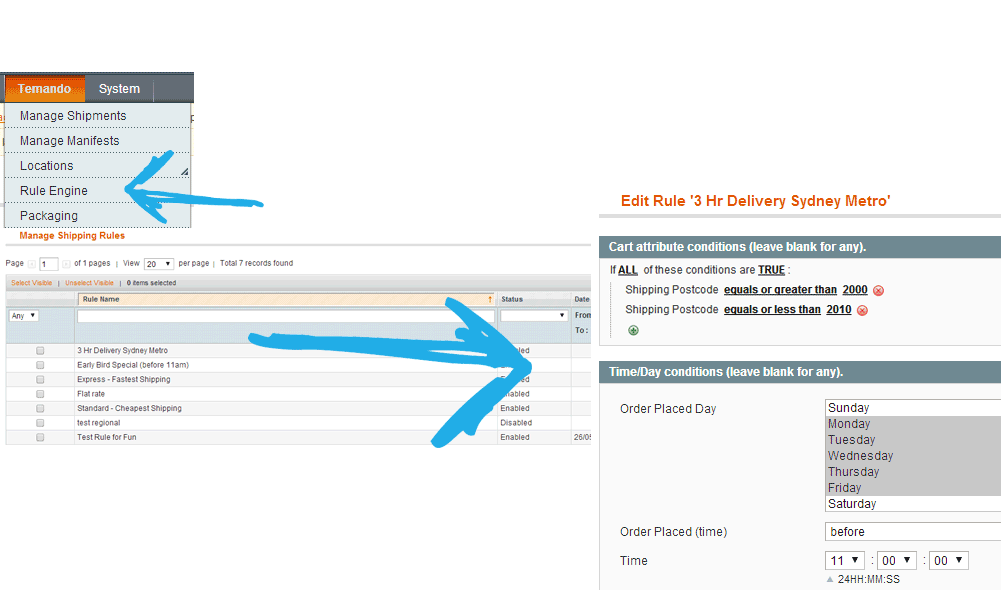
Want to replicate The ICONIC’s very popular 3hr service? Time specific rules allow you to do so.

Time specific rules allow you to offer specific delivery timings. For example, 3hr or Same day, it also allows you to apply conditions to specific products or product categories.


Pamper Hamper use a time specific rule to offer same day shipping to Melbourne Metro Postcodes


Flat rate shipping for specific zones 

Offer certain zones a flat rate price. This allows you to create a rule where all Sydney metro post codes will be marked as a nominated amount for example $9.99. 


Free shipping over a certain amount 
A step further to the basic free shipping rules is over a certain amount. You can allocate a cart value, once the customer reaches that cart value they will receive free shipping
Hunters and Gatherers offer free shipping to customers who spend over $149.95


Controlling what carriers service what areas 

You can control what carriers deliver to each zone. By setting up zones and defining IF THIS THEN THAT conditions, you can specify which courier company delivers to a certain zone. For example, if you have superstar feedback about Fastway Melbourne drivers you can specify in your rules engine that all Melbourne post codes are fulfilled by Fastway only. You could then specify rural Victorian postcodes to be fulfilled by TNT and so on.  


Where do I set up and manage my shipping rules? 


Handy Tip
Unlike the starter version, the higher plans allow you to label each delivery option instead of the Temando nominated names. For example instead of 'Couriers Please 1-5days $8.75' you can name the option 'Standard Delivery' A handy option to make your check out sleek and seamless. 

If you're interested in having a closer look at the rules engine and Temando's shipping extension - head to our Magento Demo Store. Or for detailed step-by-step instruction on setting up advanced rules in your Temando Magento Extension. Please refer to the Magento configuration guide.

Next week we will discuss adding extras at the checkout - especially for those social conscious customers.


Wednesday, May 14, 2014

Plug Into Better Shipping Part 4: Managing Multiple Locations in Magento


Do you have more than one warehouse or physical store? Are you shipping from all of these locations? Well, you should be! Temando helps online retailers big and small manage multiple locations and streamline their entire fulfilment processes.


Multi locations functionality is the ability to set up more than one sending location in your Magento store admin, whether this is from a warehouse, physical store location or a supplier. This gives you the ability to use your physical stores as fulfilment points, allowing you to send from different locations Australia wide.


Let’s walk through the below example: If your customer is in country Queensland, fulfilling the order from your closest fulfilment point with inventory helps to decrease travel time, as well as the cost, compared to sending the item from a Sydney warehouse. You can now speed up delivery times and avoid unnecessary freight costs.

Multiple locations and zones


It gets better – once you have your locations set up in your Magento store, you can also create some really smart rules. *We will look into creating shipping rules in our next 2 posts.  Multi location functionality is available in the Temando Magento Shipping Extension for plans professional, business and enterprise solutions. Business and Enterprise gives you the extra flexibility of adding sub accounts to each of the locations.

What’s a sub account and why would I need that? 
Sub accounts allow Temando to identify separate physical locations and bill accordingly. Some retailers prefer this to be transparent and separated-in a franchisee model for example. If you would like each location to be billed individually, but still have visibility over costs, this feature is perfect for you.


Setting up multiple locations 
There are 2 components of multiple locations that go hand in hand we call them zones and warehouses (don’t let the term warehouses confuse you, warehouses can be any fulfillment point i.e your store. We also refer to these warehouses as multi-location).

A zone is an area within a country which any given warehouse delivers to, it’s specified by postal code ranges.

Setting up a zone
1. Select Temando tool bar > Locations > Manage Zones from this admin panel select Add New Zone
2. Name: this is an internal reference 
3. Country: the country the zone is being created in
4. Postal Code Ranges


  • To cover the whole country enter: 1:9999
  • You can individually enter the postcodes separated by a coma
  • To define a range use a colon like the example below
Colon used to separate ranges when defining postal code ranges

5. Don’t forget to confirm by selecting save

For a PDF list of Post Codes from April 2014 download this document. You can view the most up to date post codes here.

Creating a warehouse
1. Select from the Temando Tool Bar Locations > Manage Warehouses > Add New Warehouse
2. General Information


  • Status: is important to ensure is switched to enabled if you would like the warehouse to be considered as an option
  • Location Type: If you are sending from this address continually we recommend always selecting Business (opposed to residential
  • Priority: If you have 2 warehouses that service the same zone, this priority allows you to select which warehouse will be chosen. The priorities for warehouses are sequential and start at “0” (eg: “0” will take priority of “1”, “1” will take priority over “2” and so on)
  • Stores allows you to select what Magento stores you would like this warehouse associated with

3. Address & Contact panel (immediately below General Information). The information required is:

Address Details
Street: Number and street address
City: Suburb. This needs to be specific to the postcode. For example if the postcode is 2011 – it has to be Woolloomooloo, it cannot be the default of Sydney.
Country
Region: State

Contact Details
Contact Name: Primary contact at this warehouse
Contact email: Primary Contact email address
Phone 1
Phone 2: Not mandatory but good to list.
Fax: Not mandatory but good to list

4. Assign your warehouse zones by selecting a zone, to select multiple zones hold CTRL and click
Assigning warehouses

5. Select yes or no for Extra Location Information items
6. Temando Profile is only applicable to users with sub-accounts with Temando
7. Assign pre-created Magento users the ability to view assigned warehouse/locations.


  • This is key when defining what login can see what orders. i.e. Queensland store when assigned here cannot see Victoria stores orders. 

Make sure you save your settings!

Setting up zones and warehouses is the base for rules in the Temando Shipping Extension for Magento. It is important to define your shipping strategy and create zones and warehouses to align with this strategy.

Coming soon

Our team is working hard on adding features to the Enterprise plan, multi-location inventory management being one. This will give you the ability to assign stock/SKUS to each location.
Stay tuned for that future feature release!

Next week we will start looking at setting basic rules in Magento. 


Wednesday, May 7, 2014

Plug Into Better Shipping Part 3: Packaging Configuration for Success


When sending different sized items - big, small and the in-between – it’s important to ensure you have correctly added you’re product weights and dimensions into the Magento system. These details assist in accurately quoting your parcel, whether it’s going from Sydney to Sydney in a satchel or its 3 parcels heading from the Gold Coast to Adelaide.

It is important to accurately enter the correct packaging configuration to ensure the courier company knows what’s being picked up and so Temando can return an accurate shipping price from your chosen couriers. By getting this right in Temando, you can avoid receiving ‘incorrect dimension fees’ from the courier company.


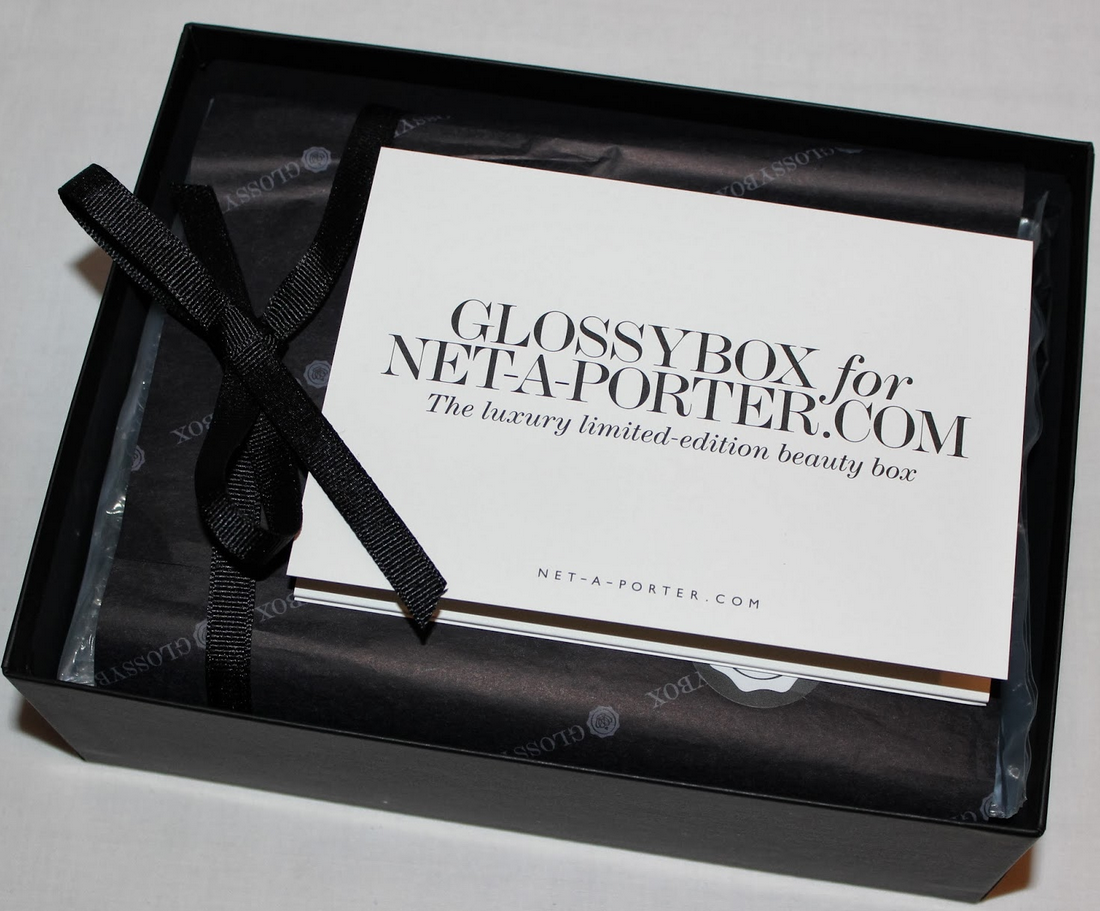
Packaging is also a great opportunity to reinforce your brand to your customer. How do you want your customers to feel when they receive your products? Get creative and focus on your customer experience.


How to set default packaging 
If all your products are sent in the same packaging i.e. you’re a fashion retailer and everything can easily fit an A5 satchel, you can skip setting up individual product details and simply add default packaging dimensions: 

1. Click Temando in the admin tool bar
2. Select Configuration Settings
3. Select Temando Settings 
4. From the Temando Settings tab select Packaging

Enter in:

1. Packaging: what packaging type will this item be sent in
2. Fragile: Yes or No
3. Length, Width and Height – be sure you enter these dimensions in the same format as you have defined in Temando > Configuration Settings > Temando Settings. All details must be entered as whole numbers i.e. 11.5cm should become 12.


For any items you do not nominate packaging details, Temando will look to this default packaging type, consider your shipping rules and use these details to quote the customer. 

* Please note if these details are smaller then what is actually sent the courier may pass on a fee to your Temando Profile, you can find out more information on fee’s via our FAQ’s section on the website.


How to set individual product packaging
If your products vary in size when packaged you will need to enter individual dimension and weights for each product: 

1. Go to Catalog > Manage products > select the product
2. Select Temando from the product information column


Enter in:

1. Packaging Mode: 

  • Use Defaults will look to the set default packaging
  • As Defined the system will use the individual Temando Product Information 
2. Packaging
3. Fragile: Yes or No
4. Length, Width and Height 

5. Don't forget to save!


Hot Tip  
Each product must have a weight saved in the product information. We recommend saving it in general in the individual product settings. The system will not look to default for the weight and will return an error message.

If you have a large number of SKU’s you would like to add individual dimensions and weights too, you can do this via a data flow batch import feature in Magento. For more information on this feature please speak with your developer or refer to Magento forums and blogs.


To wrap things up, make sure you;
1. Use packaging to display your brand.
2. Set a default packaging size and weight
3. Individually set packaging sizes and weights to ensure you are charged correctly. Failure to do so may result in fee’s applied by the carriers.


Next week we will be talking multi locations in Magento.

Tuesday, April 29, 2014

Plug Into Better Shipping - Part 2: Temando.com - The Basics


First up, let’s get back to basics. Today’s post will start from the very beginning and will take you through step-by-step how to:


1. Sign up for a Temando Profile
2. Nominate payment method


These are important steps to get out of the way before we get into the nitty gritty of configuring your Magento extension. In the coming weeks we will get a bit more exciting looking at packaging configuration, multiple locations, click and collect and other great Temando features in Magento.


Please note this series assumes you have downloaded and installed the Temando Magento Shipping Extension from one of our plans: Starter, Professional, Business, and Enterprise. If you have not you can download Starter from Magento Connect or contact one of our Solution Managers. Once you have installed the extension you need to enter your Temando Profile details into the configuration section of the Magento admin panel.


To create a Temando Profile -


1. Go to www.temando.com
2. Click Sign In


3. Click Create A New Account under the Register column
4. Enter in your details as prompted – be sure to select Company


5. Once successful, select ‘Go to your account’ and select ‘My Details’ from the main navigation


6. Take note of your ‘Account No.’ and ‘Login ID’ as you will need these in the Magento Admin                 section


Secondly, to start shipping, we need you to nominate a preferred payment method. If you would like a trading account please speak to your Solution Manager or Contact our support team.
To use the Auto Top up function;


1. In the My Details section, select  PCI Compliant from Payment Details

2. Select Store Credit Card for Express Payment in Future Transactions
3. Enter the card details and select Update from the bottom of the page


4. Navigate back to the Payment Details section in Auto Credit Top Up and enter the amount you             wish to be automatically charged to your credit card
5. Select Update from the bottom of the page


Temando will add Temando credit to your profile when your Temando credit balance reaches $0 and you make a courier booking. Your credit card will automatically be charged, topping up your Temando Credit.


Now you’re all set up in Temando let’s transfer these details to Magento admin so the extension can work in sync with Temando.


1. Log into your Magento admin
2. Select Temando > Configuration Settings > Temando Settings from the top tool bar
3. In the ‘General’ section enter your: Client ID (Account No), Login ID and Password
4. Select save config


Now you are ready to start shipping with the Temando Shipping Extension for Magento.
If you would like to learn more on how to basically configure you’re shipping extension - head over to our website and download the Magento configuration guides.

Next week we will walk through setting up packaging logic, highlighting the importance of getting this feature configured correctly and the effects it has on the profitability of your shipping operation.


Wednesday, April 23, 2014

Plug Into Better Shipping - Part 1: From the top


Welcome to the first entry in our ‘Plug into better shipping’ – a 12 part instructional series to guide you through optimising Magento with Temando’s shipping extension.

Shipping in eCommerce is often an afterthought. You have invested heavily in the product, positioned your brand and created the perfect website, only for your customers to abandon their carts. We know that 48% of online shoppers abandon their carts due to high shipping costs and lack of delivery options. In this series we will look at configuring the Temando extension to increase your conversion rates and ultimately the profitability of your entire shipping operation. Hopefully you will take away some valuable tips and plug into better shipping.

Let’s start from the top – what Shipping Extension is right for your business? The Temando Shipping Extension for Magento is available in 4 suitable plans; Starter, Professional, Business and Enterprise. Each plan has been tailored to suit different businesses sizes and needs and can be viewed on our website.

Starter
Our basic starter version is free for download from the Magento Connect Store, help tutorials and configuration guides are easily accessible to assist your developer to basically configure the extension, ready to use.

Professional
Why do I need the professional plan?
  • You would like to take advantage of our advanced rules engine, which allows you to dynamically display delivery options to your customers – Standard, Express, Same Day. The rules engine also allows you to govern your shipping by managing which postcodes are allocated to certain carriers and delivery options.  
  • The Temando system is a Hybrid rates system which means you can upload your own carrier rates (BYO) from almost any carrier in the world and still benefit from multi-carrier accessibility.

Business
Why do I need the Business plan?
  •  You wish to take your business to the next level or already have M2E Pro and Onestepcheckout.com installed and you require our module to be configured to work with these plugins
  • You have bricks and mortar stores and you wish to move your business into the omni-channel with functionality like our ‘click and collect’ module
  •  You receive a large percentage of multi-item orders - requiring the use of our pick slip functionality
  •  You receive a large number of orders daily and wish to print labels in bulk
  • Use our Packaging optimization logic to drive costs down by automating which packaging to use based on the customer’s order information. 

Enterprise
Why do I need the Enterprise plan?
  •  You want the bee’s knees – a complete omni-channel fulfilment solution with real-time inventory management, click and collect, split shipments, drop ship and integrated returns module  

Whilst all versions can be installed by your Magento developer, due to its complexity we recommend an advanced Magento developer complete the installation to ensure it is correctly integrated. Alternatively, Temando can install the extension quickly and correctly (additional costs associated). Whilst there may be a few complex components to the install – the useability of the extension is simple for both the customer and admin user.

If you’re not sure which plan best suits your business needs, contact one of our Solution Managers.

Next week we will walk through - Temando.com – The Basics.

Tuesday, April 15, 2014

Positive Refund and Cancellation Policy Changes


Our business has grown and in this process we’ve been taking on board a range of feedback from our customers, just like you. You have spoken and we have listened and made a few tweaks to our Refund and Cancellation policy to benefit your needs.

These changes are currently in effect. From this date, when you use our software via API, website integration or directly on Temando.com, and check the ‘agree to terms and conditions’ box you agree to these new terms.

The important gist of the changes - 

When we will offer a refund:
If you change your mind
If you make a mistake
If you want to make changes to your booking

When we will not offer a refund:
If the item has been collected
If the courier has attempted to collect the items


Refunds will first be offered in Temando credit, for convenience, and you can continue to use your Temando Profile. Should you wish to have your refund made by original payment method – just let us know, we will be happy to do so.

We have outlined the main changes above but to view the whole policy click here. If you’re up for some reading you can also view our privacy policy and terms and conditions.

We hope these changes have a positive impact on how you interact with Temando.

If you have any feedback please do not hesitate to contact us, it all helps to make our software better for you, the user!

Thanks for reading!